The premium version should be unzipped before installation. The template installation package contains the following files:
as002022_premium.zip
as002022_quickstart.zip
plugin_googlemap.zip
There are two ways how to install the Joomla template:
1. Install Joomla template using Quickstart installation package, so it will looks exact like the demo preview
2. Manual template installation and modules configuration
1. Joomla Template installation using Quickstart package
To help novice users with configuration of CMS - we provide packages called QuickStart.
A quickstart is basically a fully functional and customized Joomla! package containing the default Joomla installation package, all modules,
choosen template and plugins with all the configurations and data in one place. The sample data in the quickstart package
is also personalised according to the template and is much different to the sample data found in the default Joomla package.
-
Uploading
If you have shell access then you can upload the as002022_quickstart.zip file and unzip the zip directly on the server. Its much faster!
If you don't have it, the package should be unzipped on your localhost and then uploaded on the server.
-
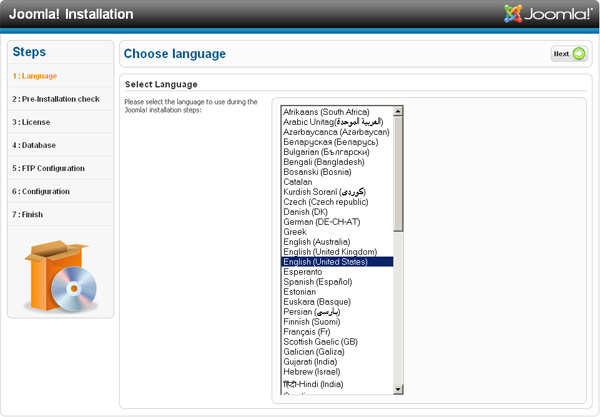
Begining of installation procedure - Choose Language
Open your web browser and navigate to the folder that you uploaded your package to. Your url might look like this http://www.mysite.com/joomla/index.php.
Please choose language and click on the 'Next' button.
-
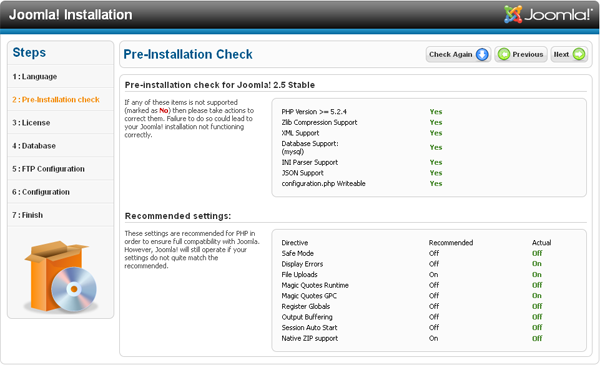
Server configuration check
This page will give you a sense of your server compatibility. You will need to troubleshoot any of the flagged
areas that are unsuitable for a Joomla installation before you continue here. Please mind that every potential
wrong setting can bring many headaches. Once you get the all clear ... click Next button again.
-
GNU General Public License agreement
Please carefully read the GNU General Public License agreement.
Click on the 'Next' button implies that you have read and accepted these terms and conditions.
-
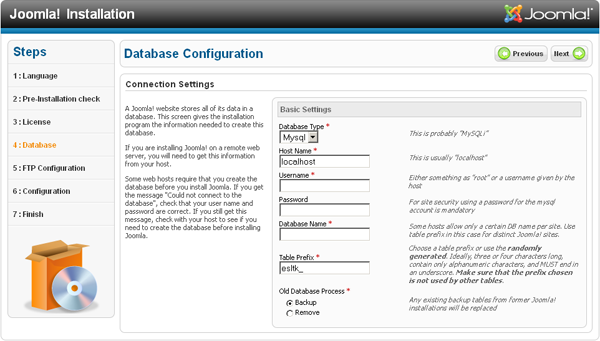
Database configuration
The details you enter here are important as this is where the actual information for your Joomla installation are going to be stored.
Put all needed information here and click 'Next' button.
-
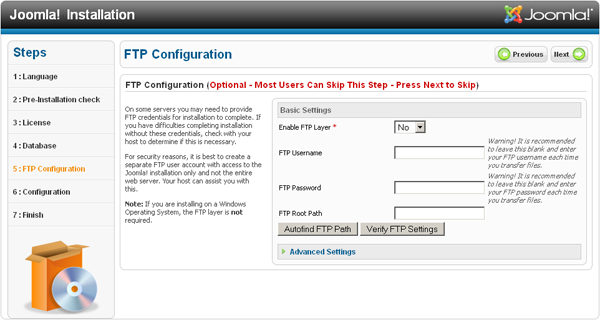
FTP configuration
Most user will not have to deal with this setting unless they have Safe Mode enabled or they know their hosting doesn't allow
normal extension installation. But this has no impact on QuickStart installation and you can edit this setting later inside Joomla Global Configuration.
Click 'Next' button to procced to most imoptant step.
-
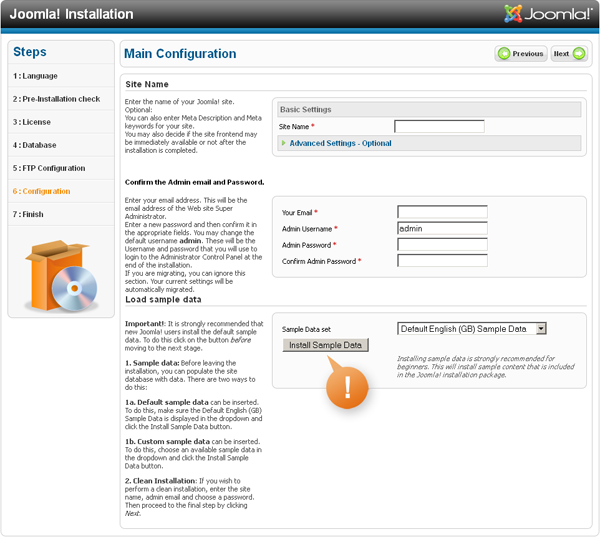
Main configuration
Most important on this page is Sample Data Installation. Without installing the sample data you will not install the QuickStart package.
You have to click on the 'Install Sample Data' button in case to install the QuickStart package content.
Also due to security reasons as a user name we recommend other name than admin.
Once you get the Simple Data installed ... click 'Next' button again.
-
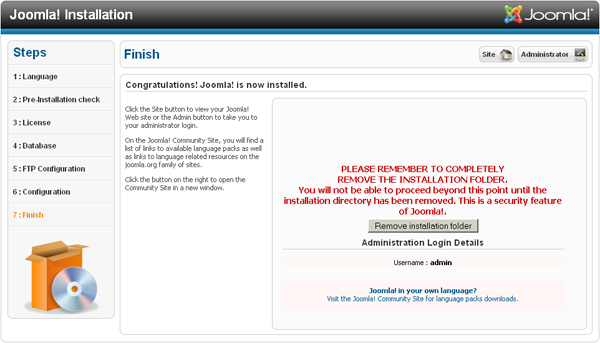
Final step
After clicking next you should reach the final page that tells you that you have successfully installed the package.
Now you should remove install folder otherwise you can't login to admin or visit website frontend.
Once you have done that you should successfully be able to navigate to the front end of your site
and see the template set up exactly the same way as the demo site.
2. Manual template installation and modules configuration
Joomla template does not come with any demo content.
Template is only predefined layout of possible modules positions including the main website graphics like header, logo or footer.
By default, Joomla! installation comes with only the Main Menu module installed.
-
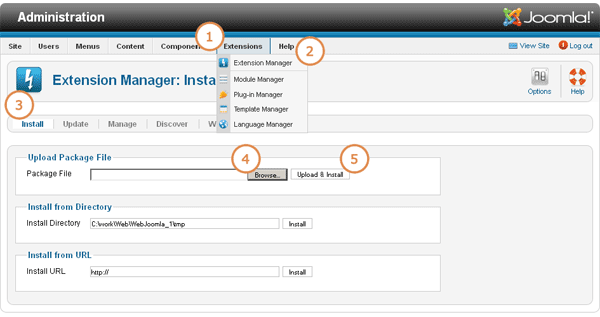
In the administration section of your Joomla! website go to the "Extensions -> Extension Manager -> Install".
-
In the "Upload package file" section browse for the as002022_premium.zip file by clicking on the "Browse" button.
-
Click "Upload & install".
-
Install all plugins and extensions included in the downloaded package.
To make your Joomla! site look like our live demo please, you have to install all necessary modules and config them through the Joomla! administration panel,
click here to see the module's configuration documantation.